This article was machine-translated from the Japanese version.
This article is for Day 1 of Table Game Tansu Advent Calendar 2021.
Last time was Raira’s I wanna sing the Carol( ) on the final day of 2020.
This article is intended for iPhone users who are not suffering from insomnia.
If you use Android or another smartphone, please consider purchasing an iPhone while reading this article.
If you suffer from insomnia, please be outraged that such an infuriating article was written.
Introduction
Do you all like sleep?
I love it. I sleep every day, and I wake up every day.
But this thing called sleep is quite troublesome — you actually lose consciousness while sleeping.
If you accidentally indulge in sleep right before a board game or TRPG session, you’ll end up being late or canceling at the last minute.
The iPhone’s built-in Calendar app has a feature that produces a \ring♪/ sound before a scheduled event, but someone who is a champion of indulging in slumber and proudly ranks first in falling-back-asleep frequency is not going to wake up from something like that.
What’s needed is a feature that blares even louder, even more persistently, repeating infinitely until consciousness awakens.
Yes, something like the alarm feature in the equally built-in Clock app…
Here, I’ll explain how to automatically create an alarm that rings 15 minutes before the start of any event you’ve entered in your calendar.
Prerequisites
- You have linked your Google account to the iPhone’s built-in Calendar app and are displaying events
- Using the Google Calendar app is not covered here
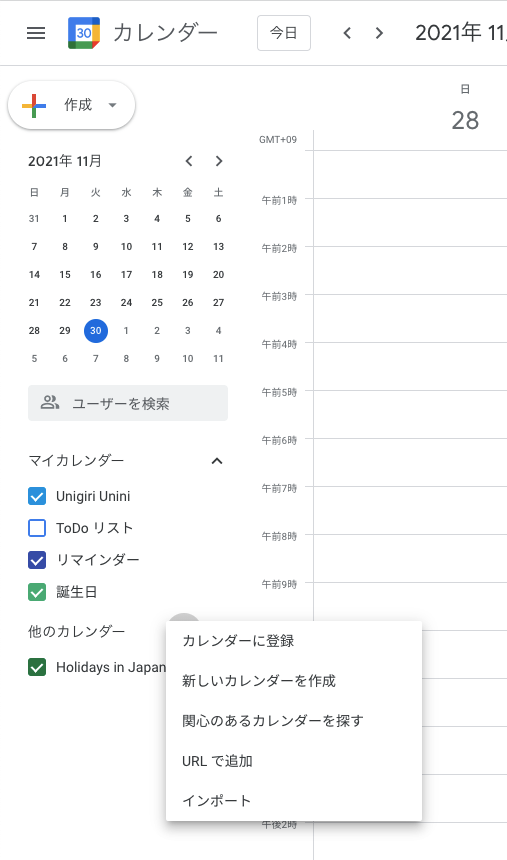
- You have created a calendar called TRPG/BoardGame in your Google account
- Calendars can be created from the left menu of the web version of Google Calendar
Specifications
- Register events in the TRPG/BoardGame calendar
- At 3:00 AM every day, check all events registered in the TRPG/BoardGame calendar for that day
- If the current day is day N, events on day N+1 and later are not checked
- Create an alarm in the Clock app that rings 15 minutes before each checked event
- If event details are changed after 3:00 AM, the changes will not be reflected in the alarm, so manual correction is required
How to Automatically Create Alarms
We use the iPhone’s built-in Shortcuts app.
1. Launch the Shortcuts App
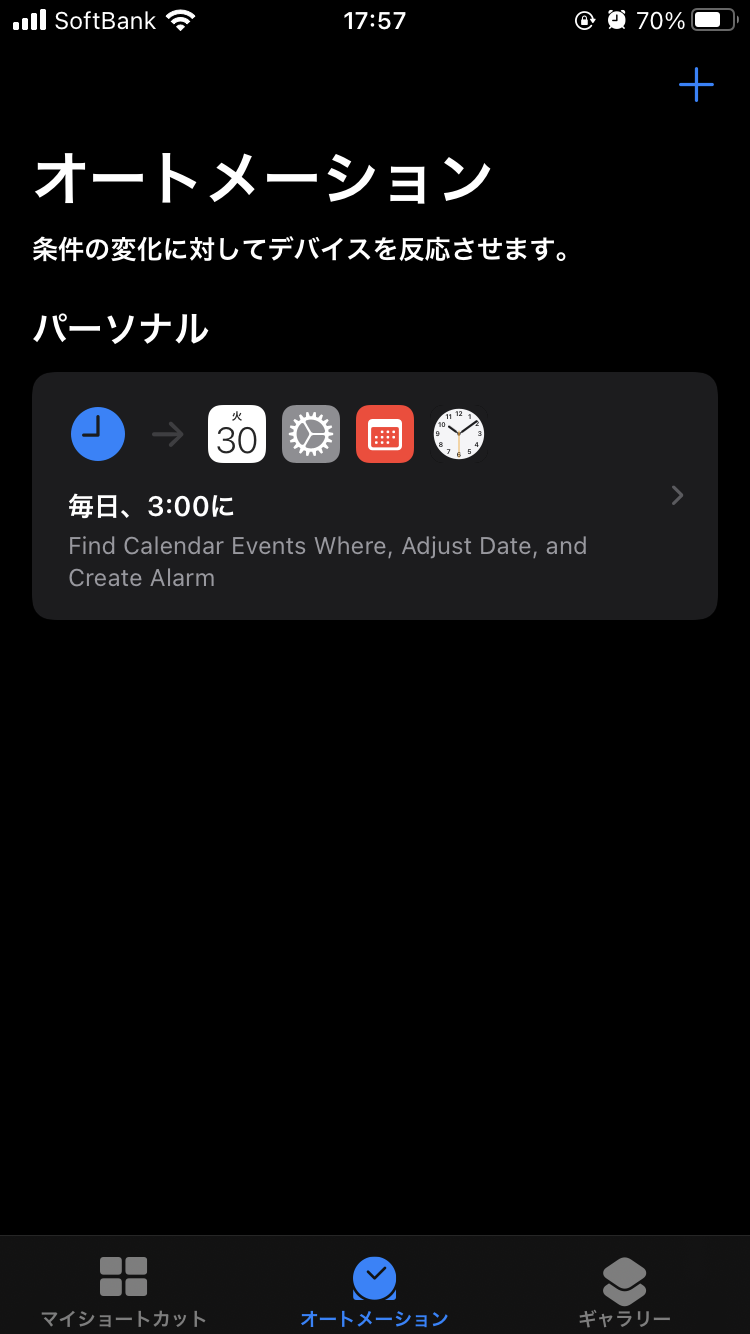
Launch the Shortcuts app and select Automation from the bottom of the screen.
Once selected, the screen will look like the following.
※The screenshot shows the state after automatic alarm creation has been completed.
If you haven’t done the setup yet, the setting labeled “Every day, at 3:00” will not exist.
2. Create a New Shortcut
Tap the “+” displayed in the upper right corner of the state from step 1.
Then, the following screen will be displayed.
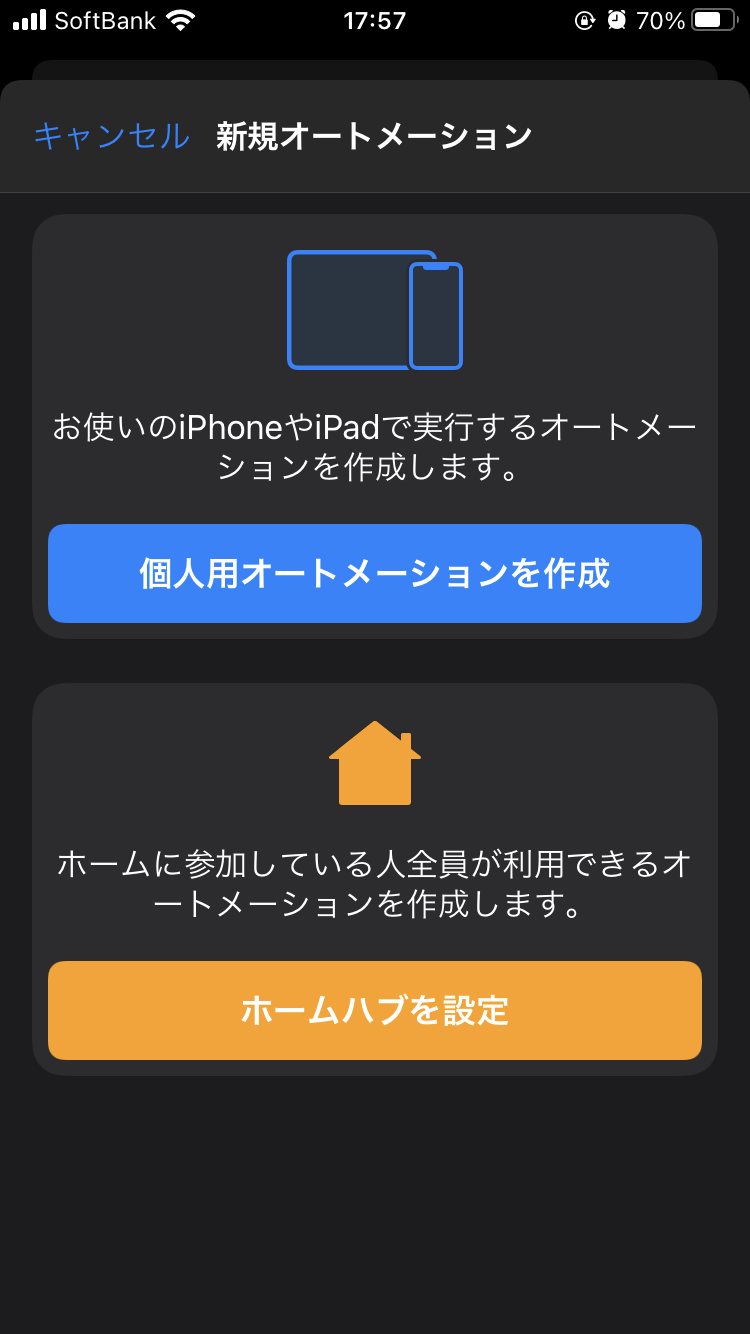
Here, tap “Create Personal Automation.”
Then, the following screen will be displayed.
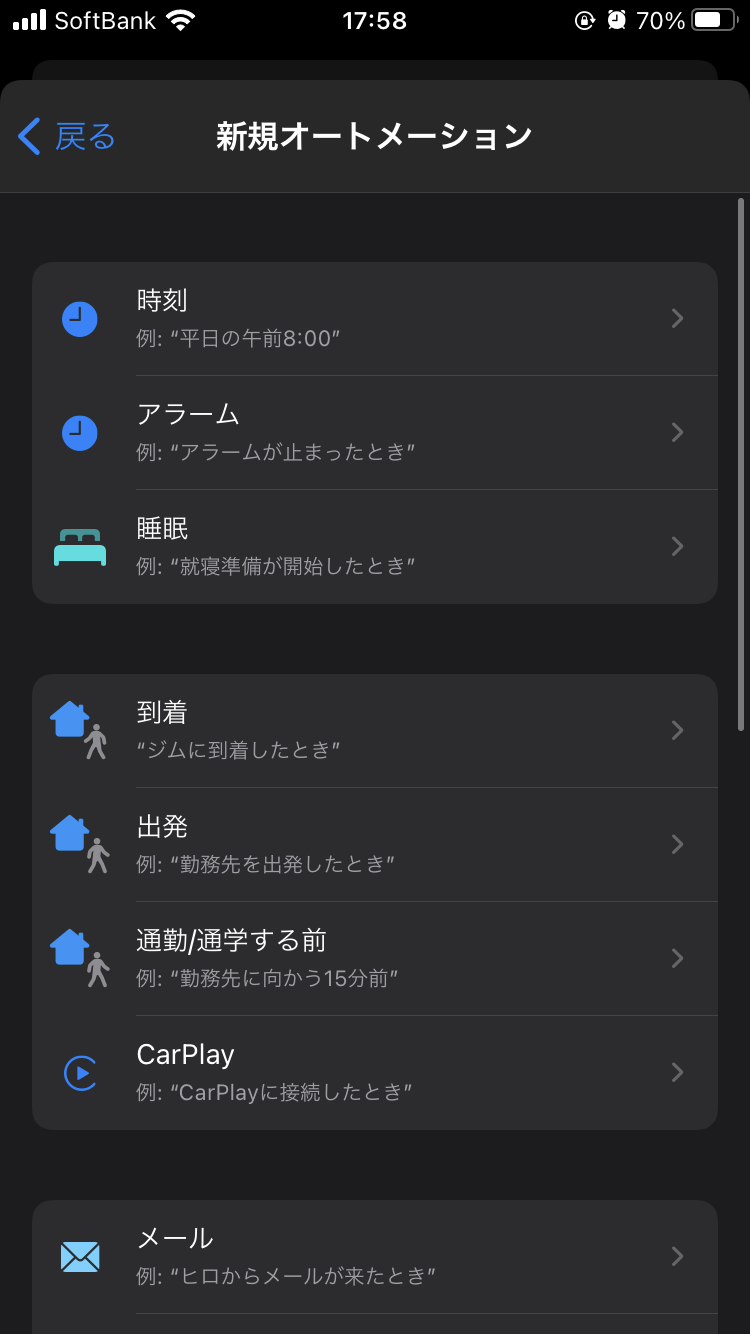
Here, tap “Time of Day” displayed at the top.
Then, the following screen will be displayed.
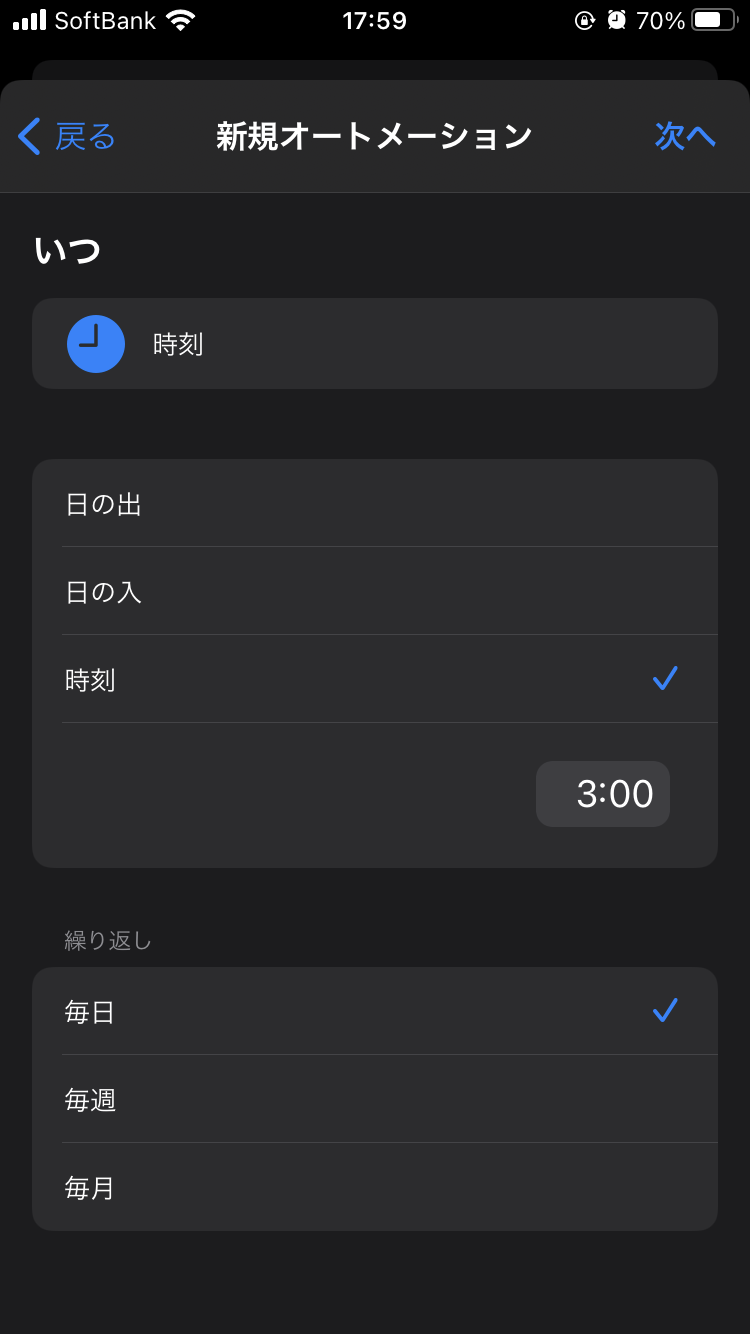
Here, set when you want the automatic alarm creation to occur.
The screenshot shows it set to 3:00 AM, but any time you prefer is fine.
However, make sure to specify “Daily” for Repeat.
Press “Next” in the upper right to move to the next screen.
Then, the following screen will be displayed.
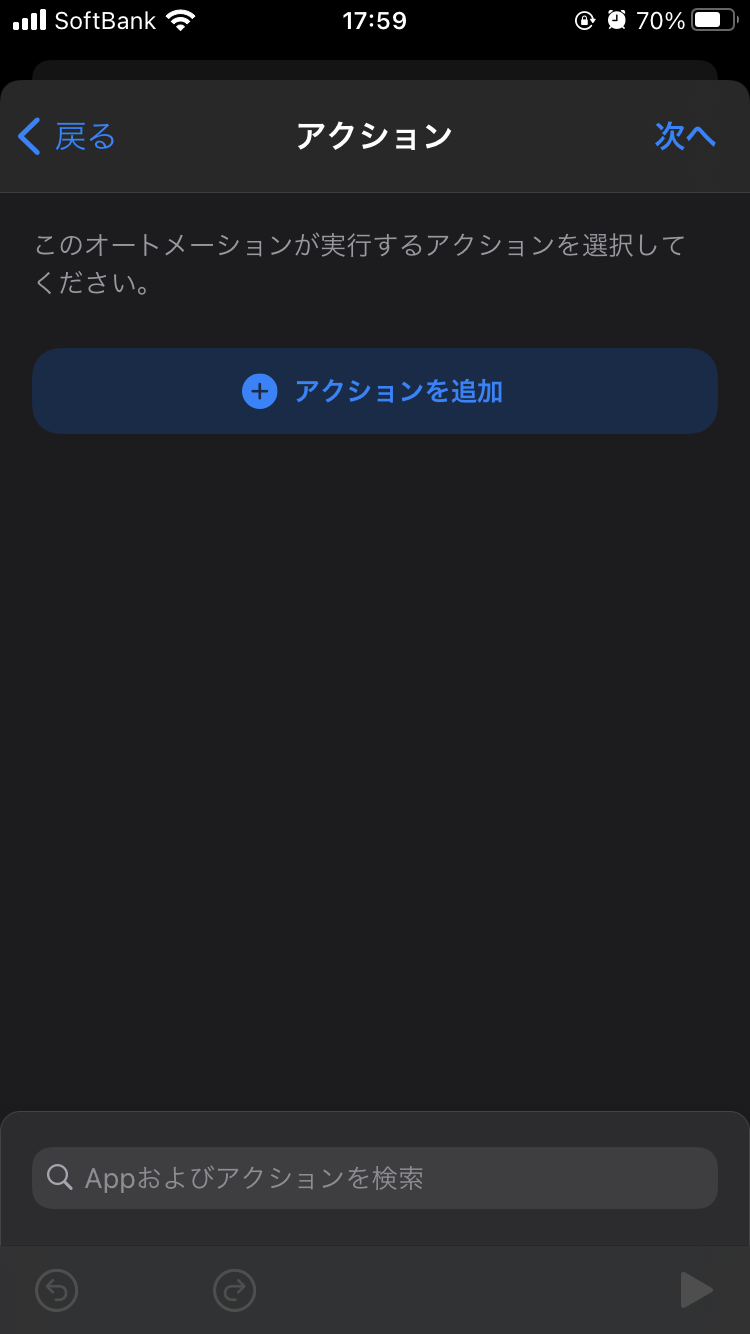
3. Configure Shortcut Actions
3-1. Retrieve Events from Calendar
Tap “Add Action” displayed in the center of the screen.
Then, the action list will be displayed.
Type “Calendar” in the search field as shown below, and tap “Find Calendar Events” from the filtered items.
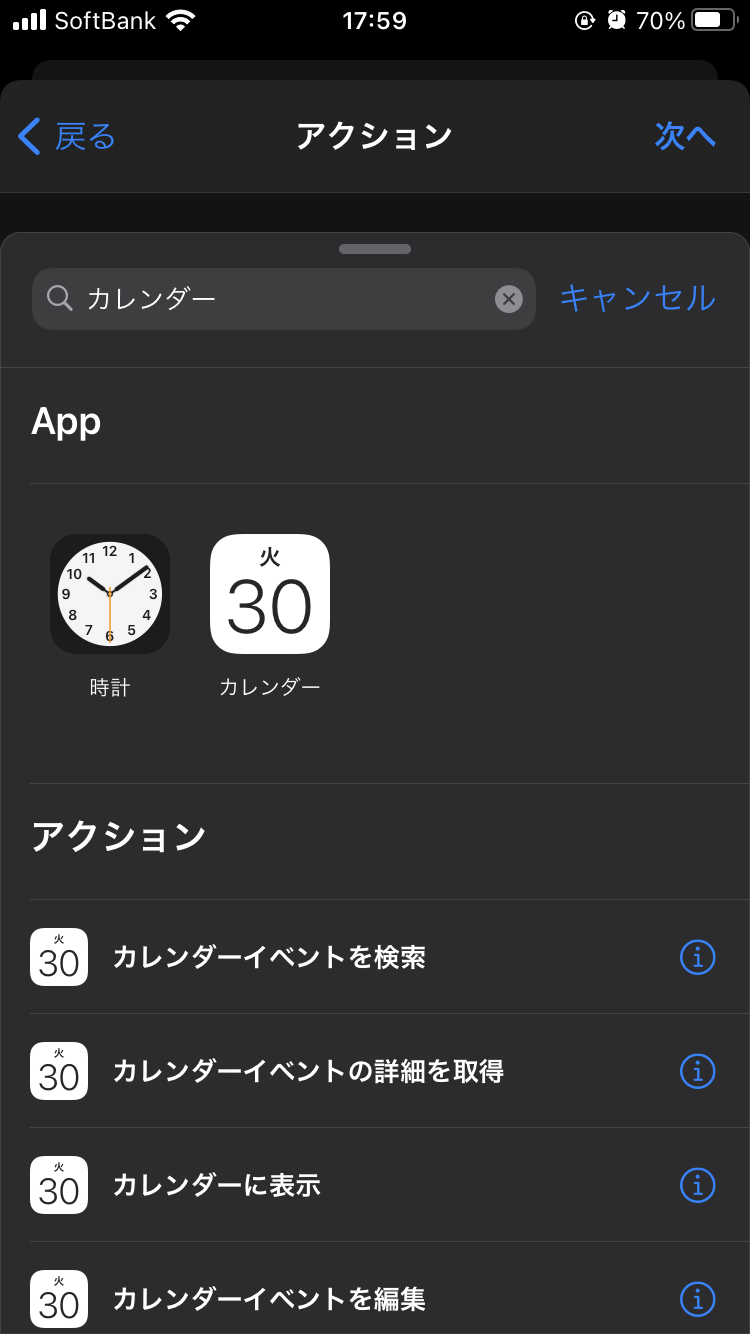
Then, the action will be added as follows.
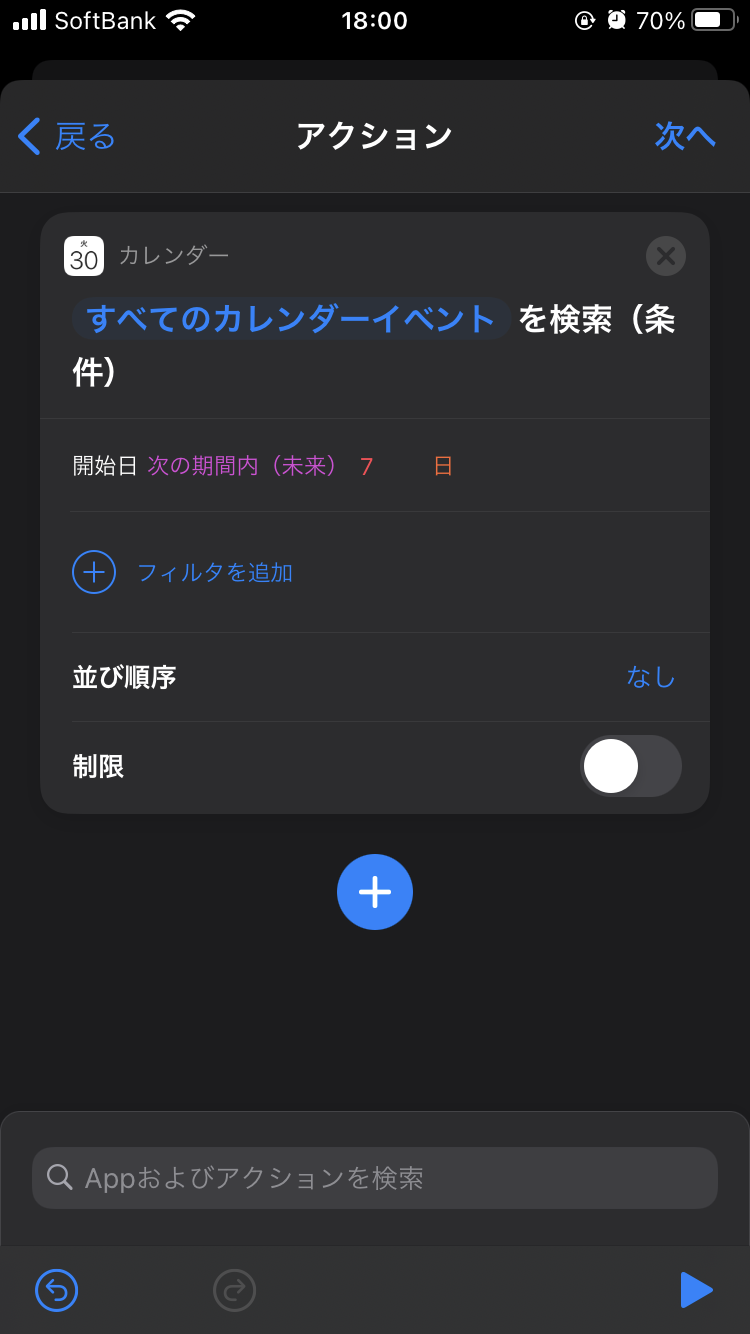
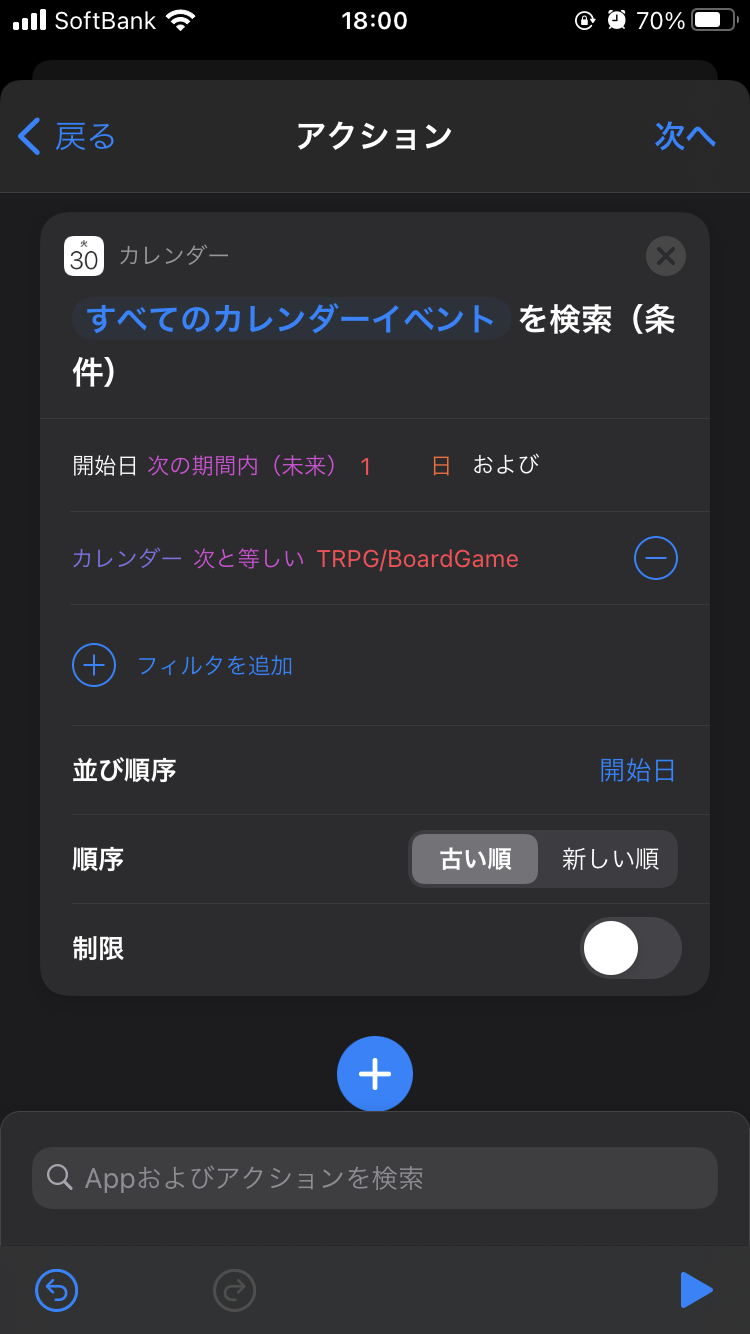
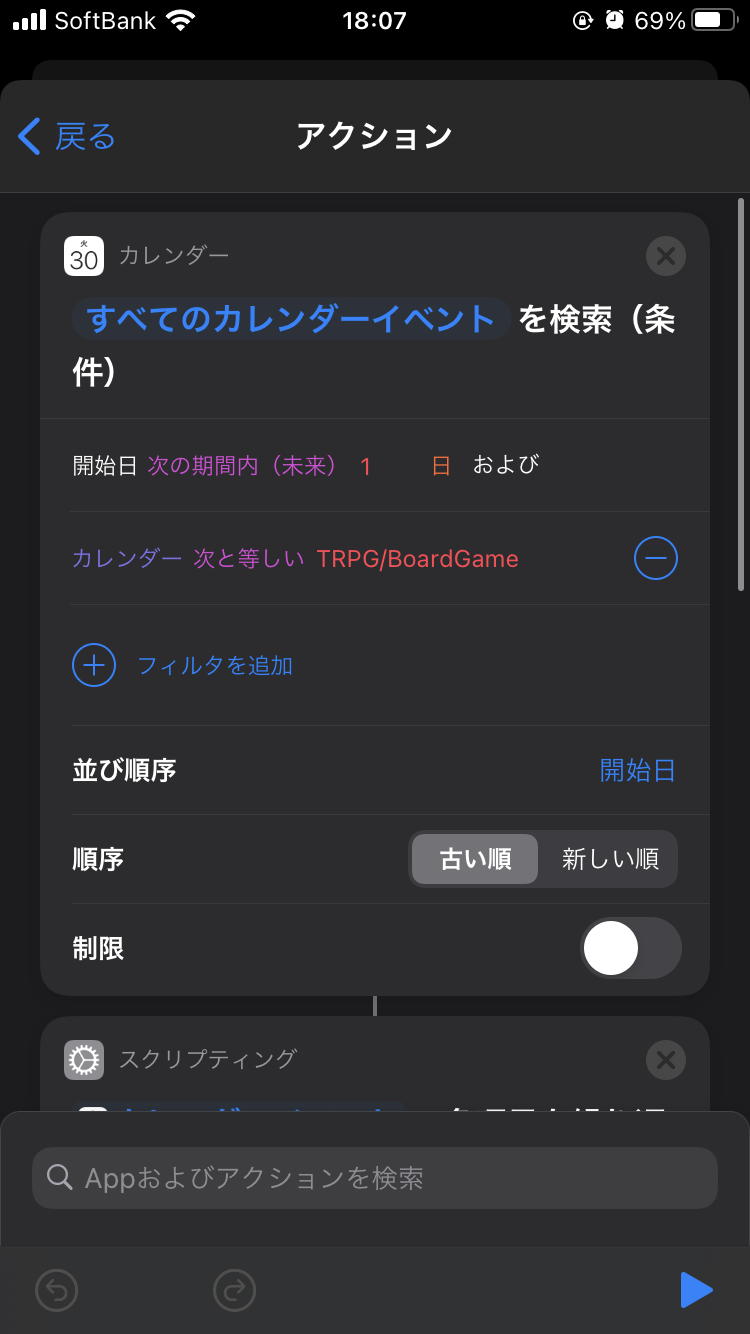
Change the content of the added action as follows.
The changes are:
- Change the start date from 7 to 1
- Tap “Add Filter” and specify “Calendar equals TRPG/BoardGame”
- Set the sort order to Start Date (Oldest First)
3-2. Create a Repeat Action
Since there may be multiple session schedules on a single day, specify a repeat process to create an alarm for each event.
Tap the “+” displayed at the bottom of the action you just created.
Then, the following screen will be displayed.
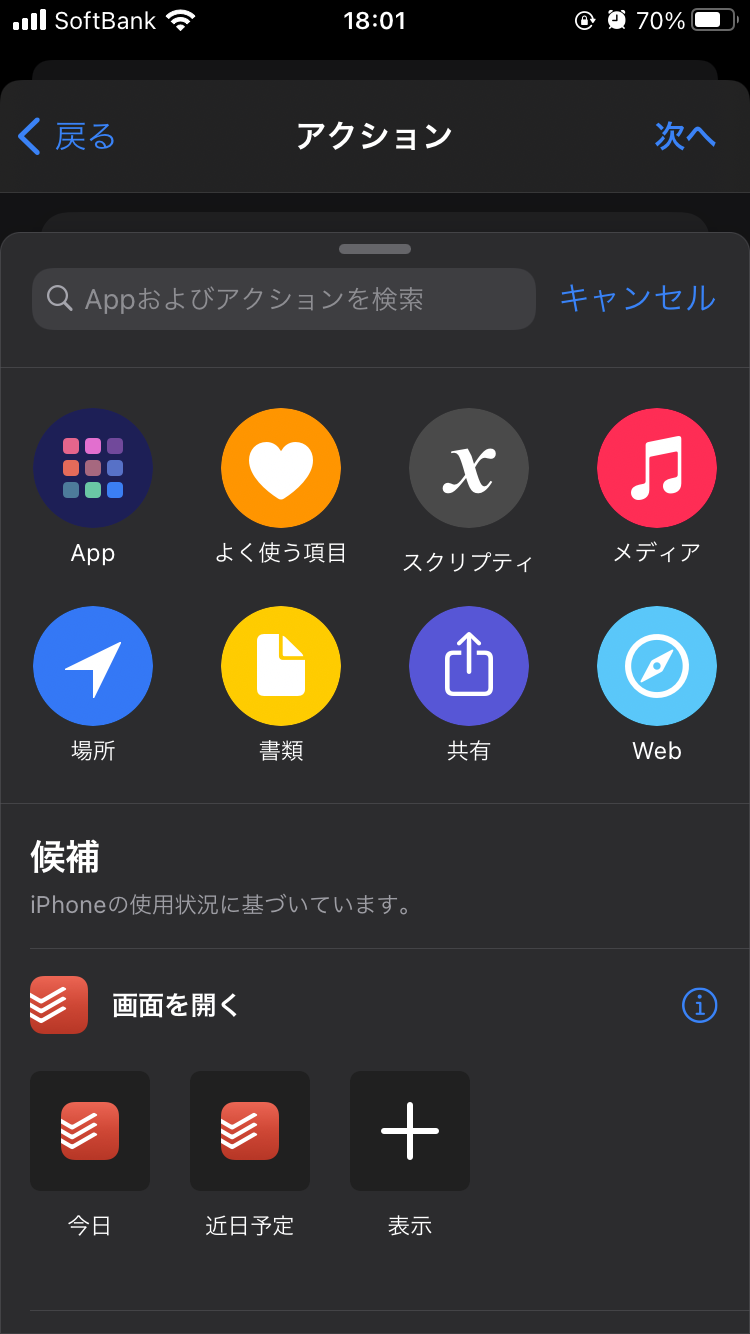
This time, don’t type anything in the search field, and tap “Scripting” which is displayed by default.
※The iPhone I’m using has a small display, so it’s abbreviated as “Scripti.”
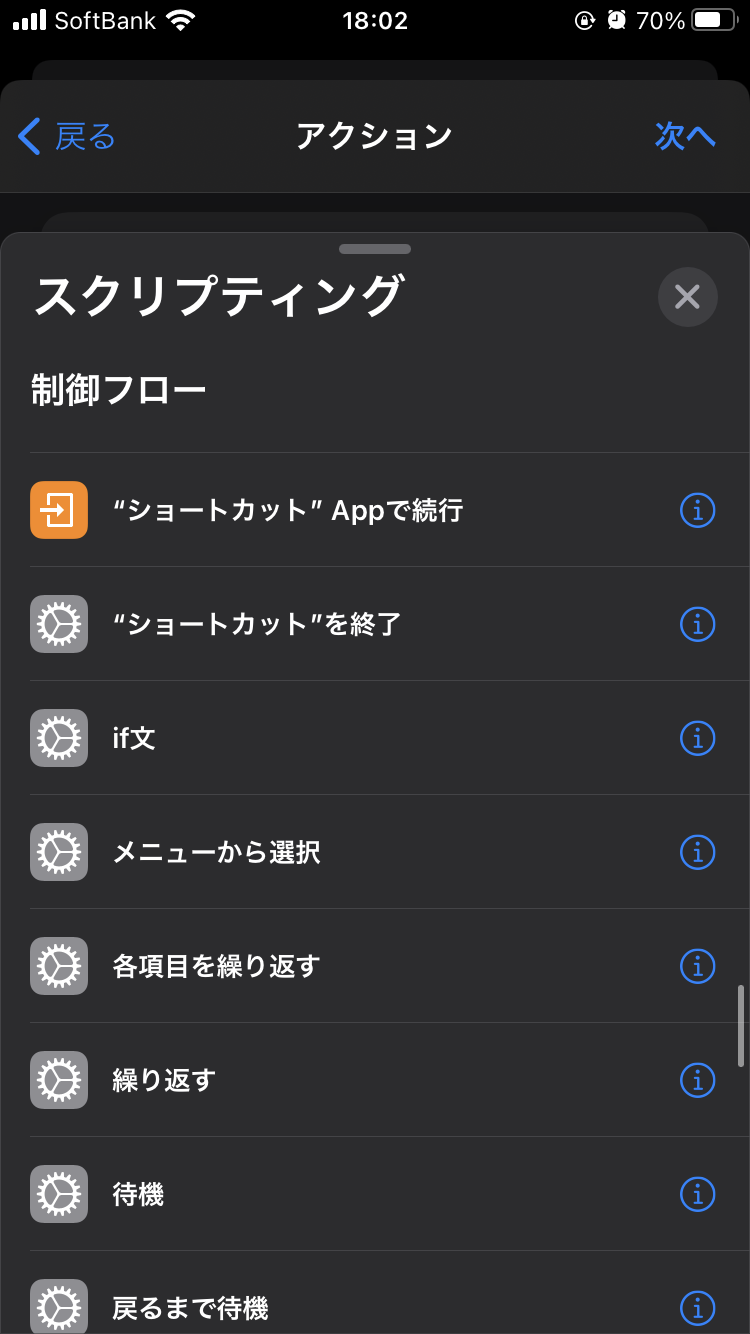
Then, a list of actions available in Scripting will be displayed.
Scroll down and tap “Repeat with Each” in the Control Flow category.
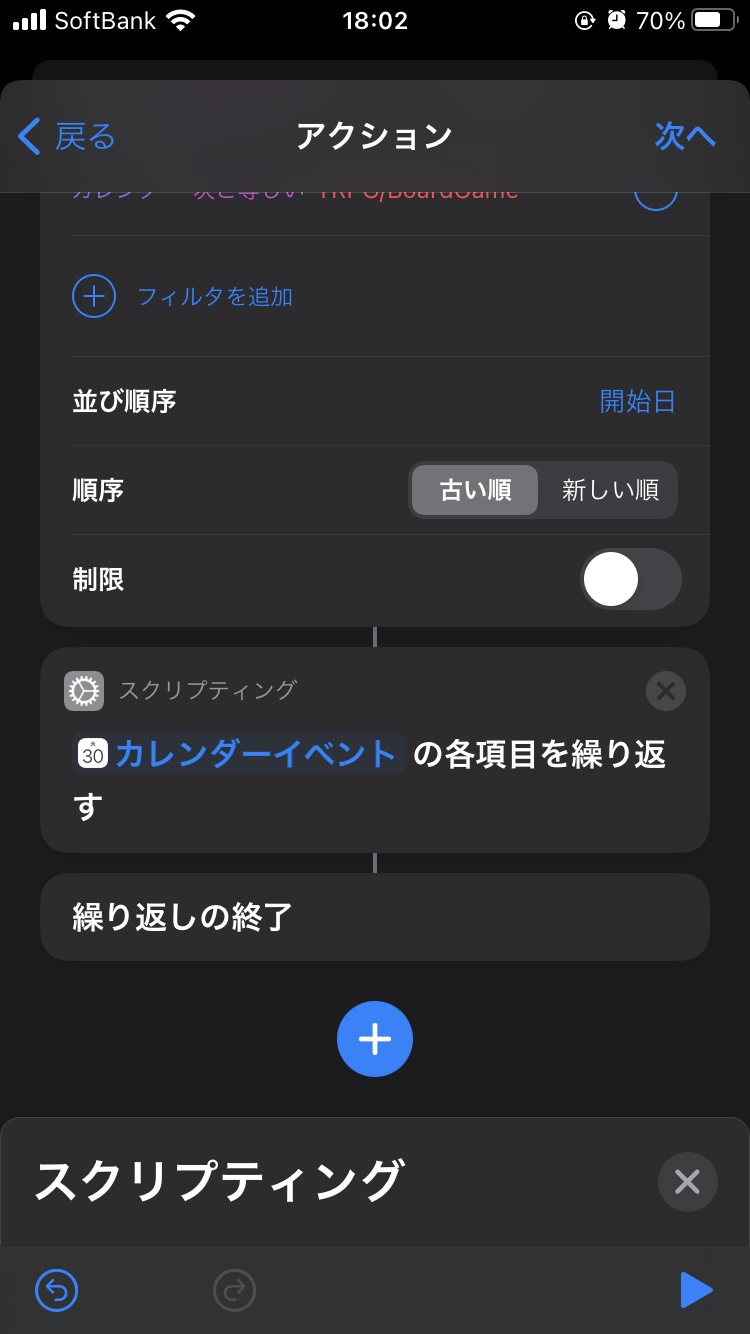
Tapping it will add the Scripting action as follows.
Leave this action unchanged and use it with its default settings.
3-3. Create an Alarm
Tap “+” to create a new action.
Type “Adjust Date” in the search field as shown below, and tap the displayed action.
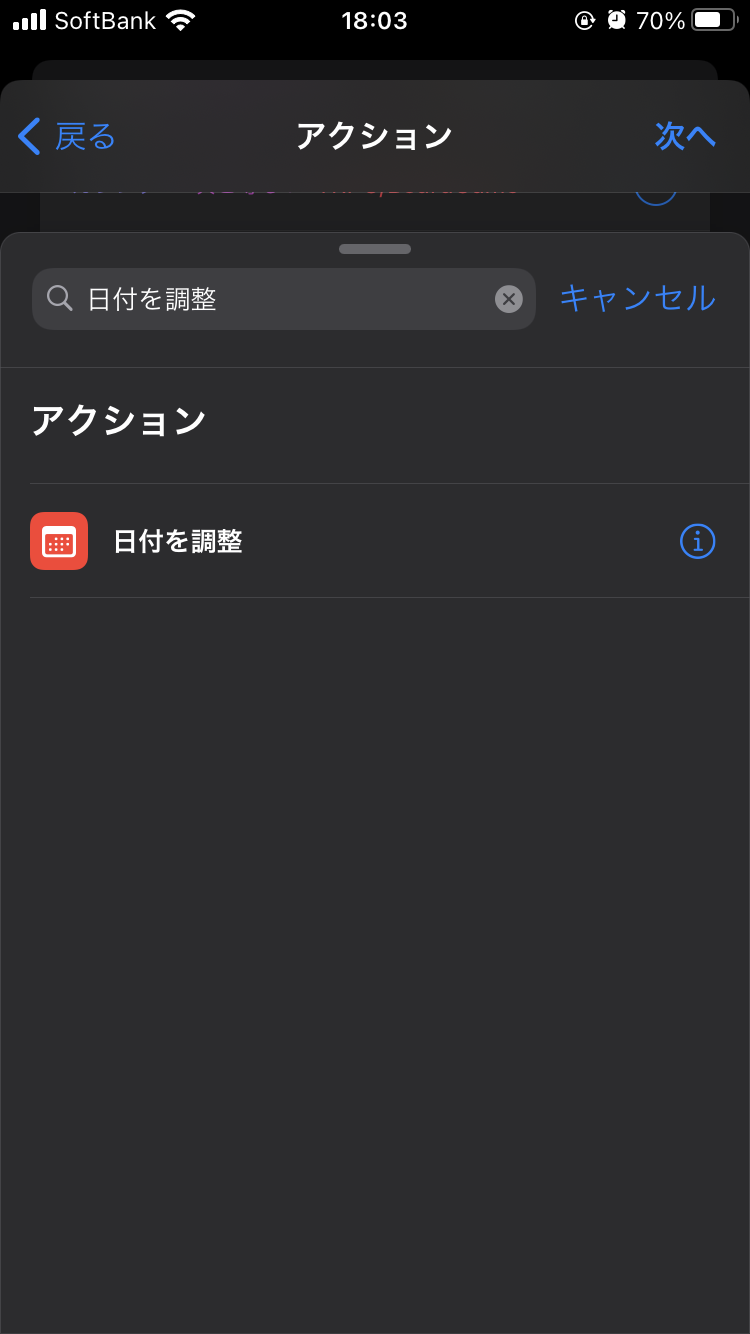
After tapping, tap “+” again to add one more new action.
Type “Clock” in the search field, and tap “Create Alarm” from the displayed items.
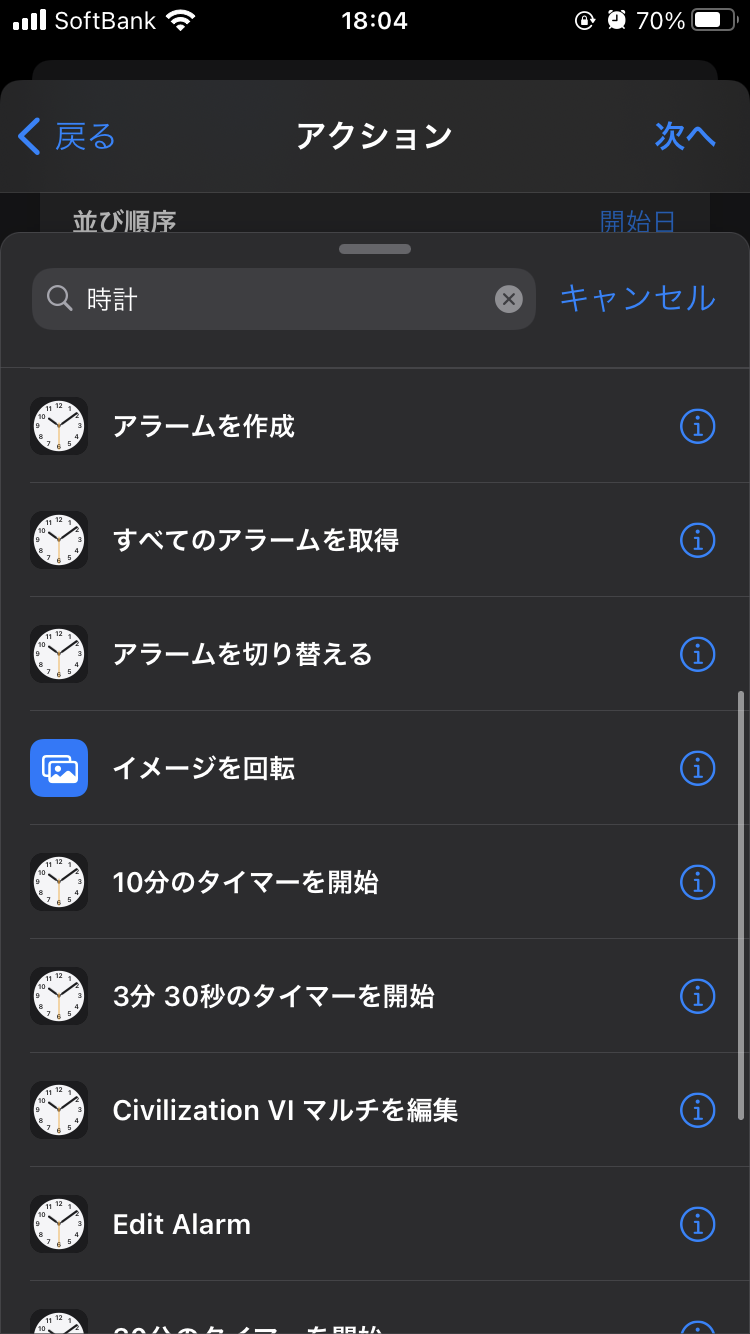
After adding both actions, the screen looks like this.
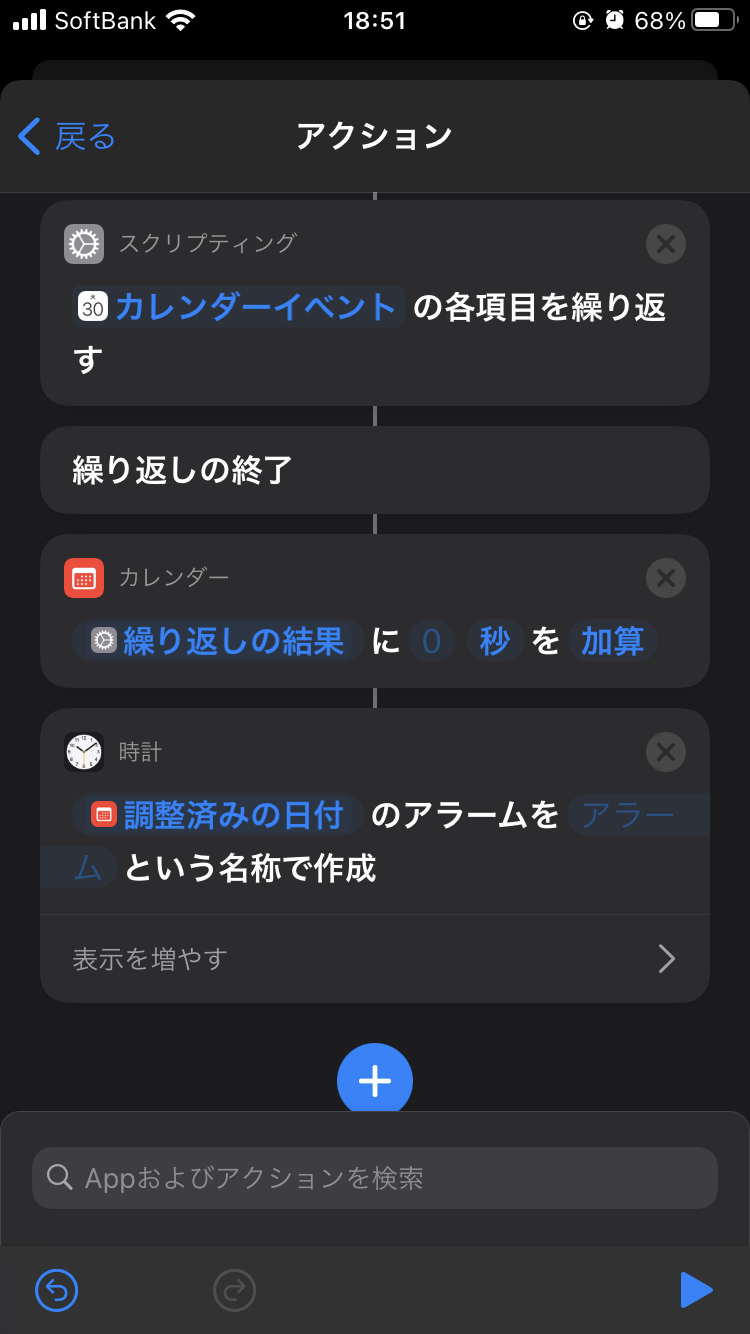
After this, move the two added actions inside the Repeat block.
Specifically, long-press an action to make it draggable, then move it to the desired position.
Ultimately, arrange them so they are in the following positional relationship.
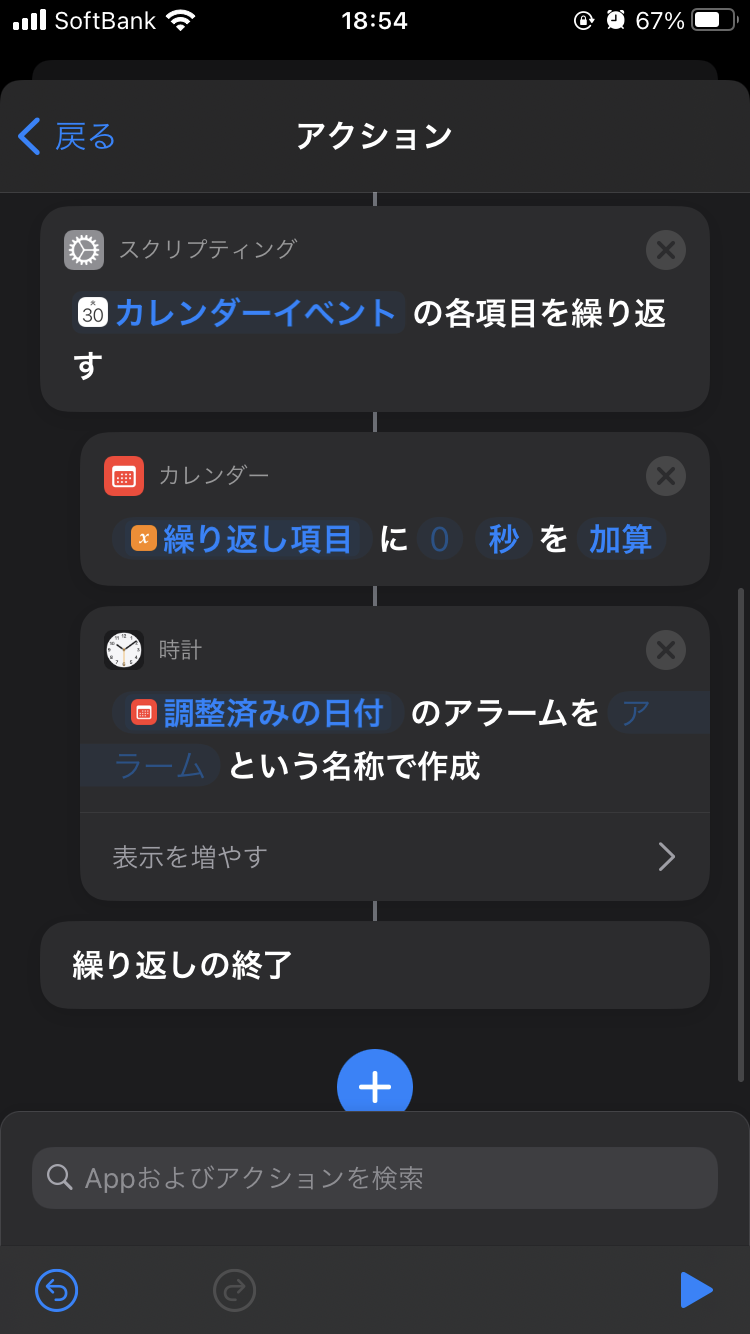
They are arranged in the following order from top to bottom:
- Action to retrieve events from Calendar (cut off in the screenshot)
- Scripting start action
- Date adjustment action
- Alarm creation action
- Scripting end action
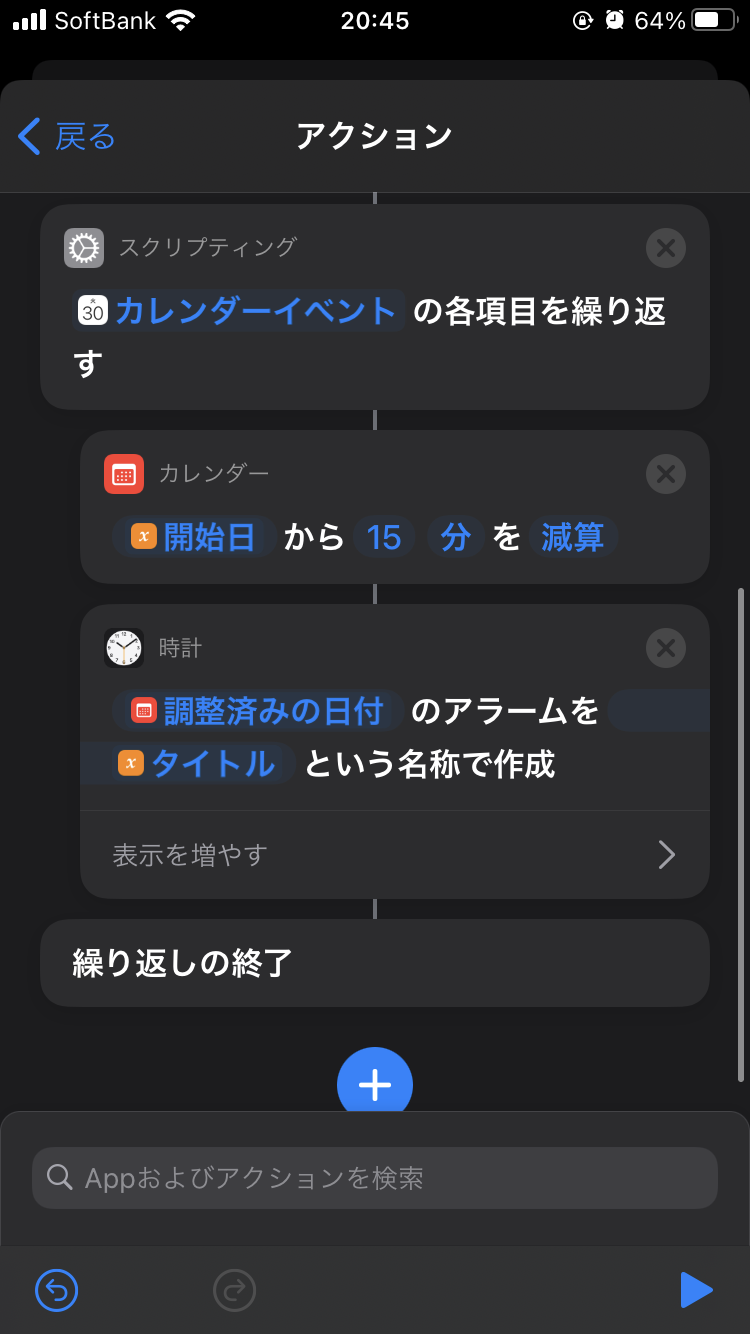
Finally, change the content of the two actions as follows.
The changes are:
- Set the Date adjustment action to “Subtract 15 minutes from Start Date”
- Set the Alarm creation action to “Create alarm for Adjusted Date with the name Title”
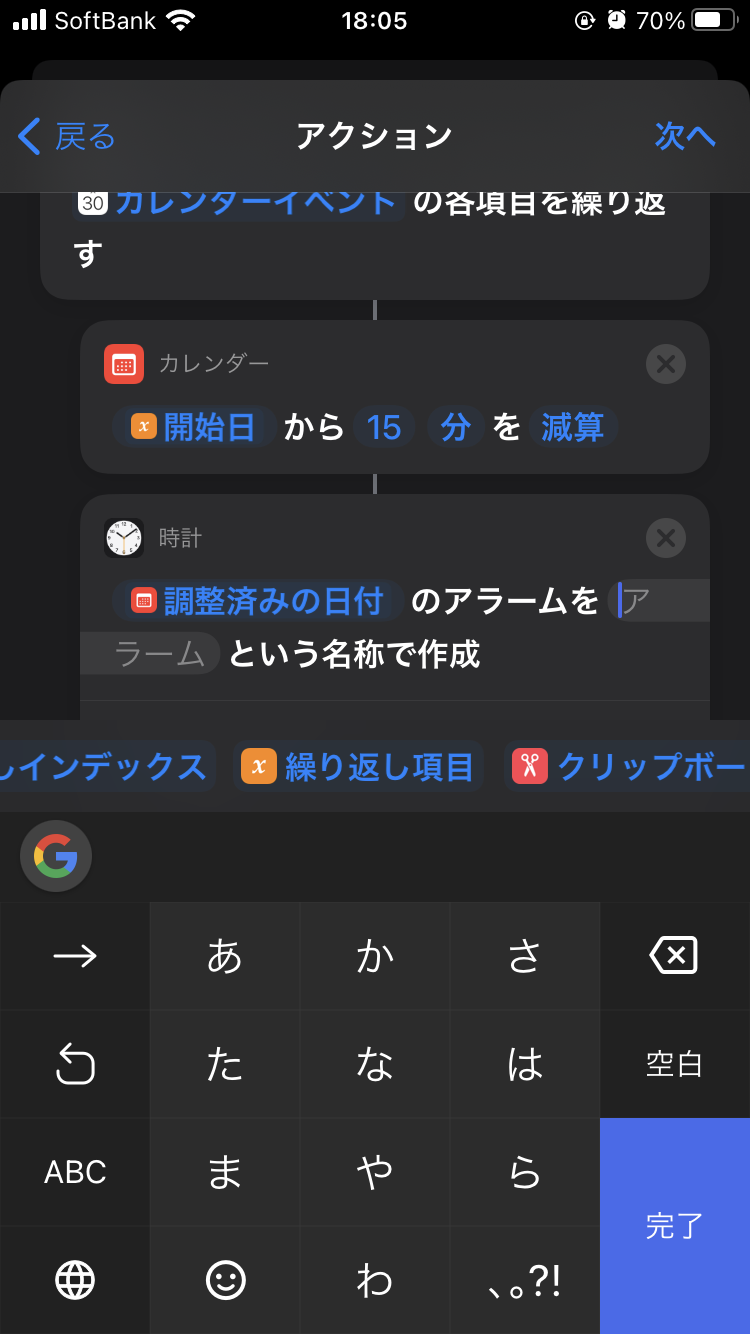
If you can’t find “Title” when changing the Alarm creation action settings, tap “Repeat Item.”
Doing so makes Title selectable as a sub-item.
4. Verify Behavior
All settings are complete, so finally verify the behavior.
Before running it, make sure at least one event is registered in the TRPG/BoardGame calendar for today.
If there are zero events, no alarm will be created.
Once you’ve confirmed there is an event, tap “▶” in the lower right of the screen to actually run this shortcut.
Launch the Clock app and display the alarm list.
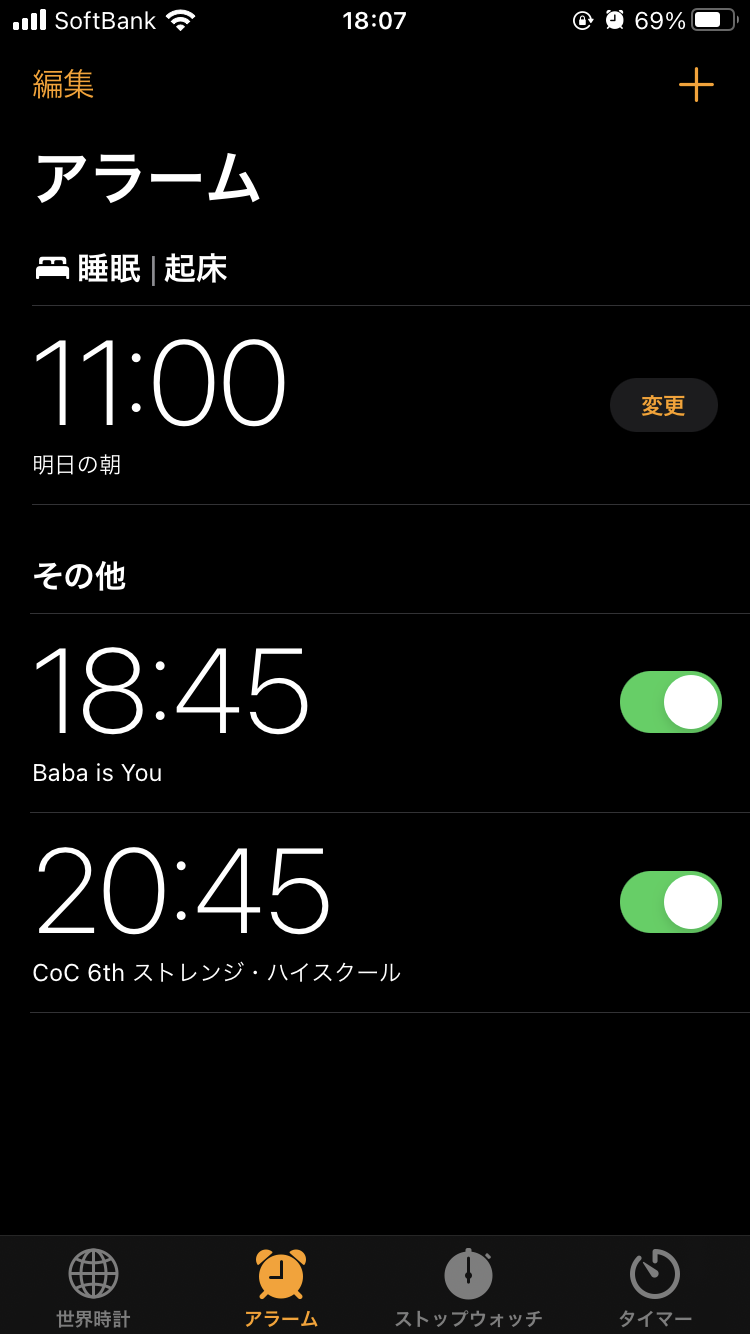
If an alarm has been created, the shortcut execution was successful.
Return to the Shortcuts screen and tap “Next” in the upper right.
You’ll move to the following screen, so turn off “Ask Before Running.”
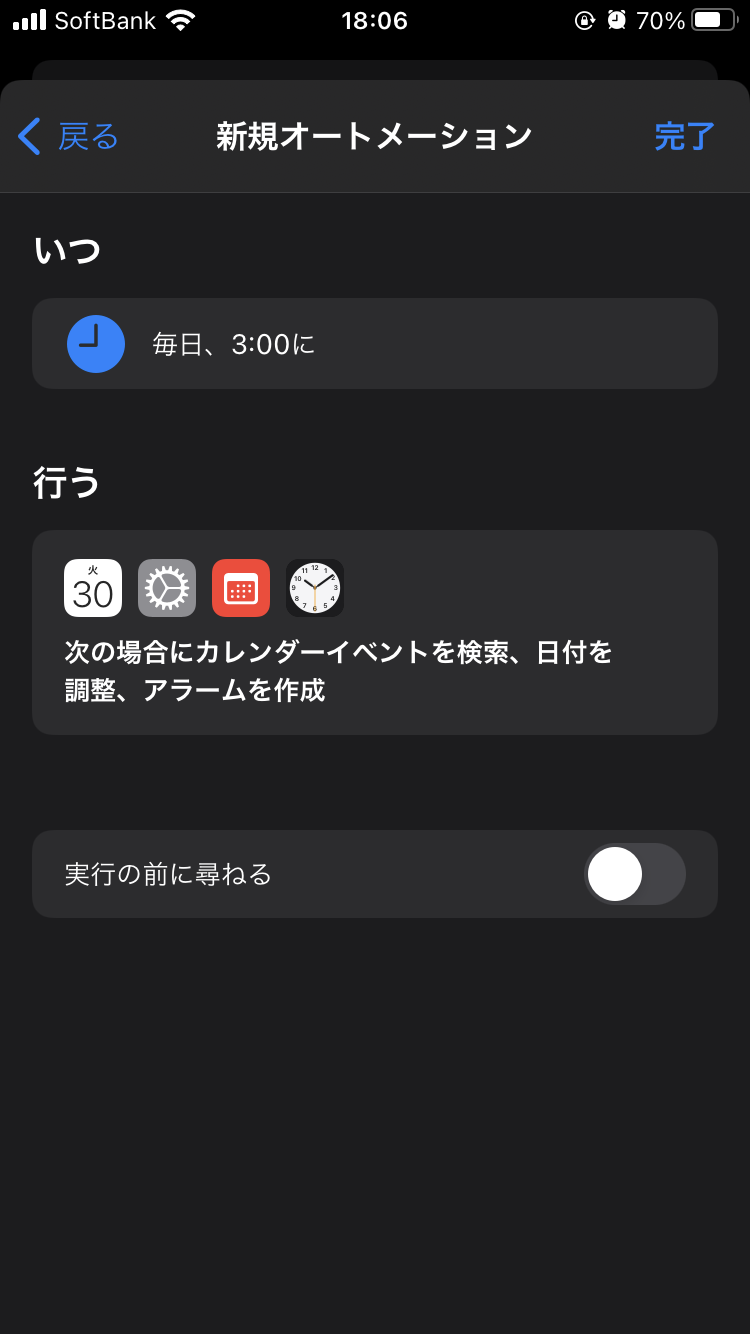
Tap “Done” in the upper right, and the automatic alarm creation procedure is complete.
Conclusion
Congratulations! If you’ve completed this procedure to the end, you can indulge in slumber anytime.
But be careful. The power of sleep is terrifying — there are times when you won’t wake up no matter how much the alarm blares.
There’s also the possibility of unconsciously turning off the alarm and going back to sleep.
The desire for sleep resides even in the human unconscious, and it can never be resisted.
To fundamentally prevent sleeping through things, you need a regular lifestyle, the physical stamina not to be completely exhausted by daytime activity, and various other efforts.
It would be nice to have a life where such things come naturally.
Tomorrow is Takekki-san’s Fell into the AKG Swamp.